By:
Haris RanaLast Updated:
TL;DR
- Inverse redaction means selecting the subjects that should remain visible, then hiding the rest of the frame.
- Use it when the release purpose is narrow and the viewer only needs selected subjects or areas.
- Avoid it when separate sensitive objects need different treatment or legal review is still unsettled.
- The workflow starts by defining what can remain visible, then treating the rest of the frame as protected space.
Most redaction work starts with the question of what to hide. Inverse redaction flips that review habit, so the operator defines what may remain visible and treats the rest as protected space. The goal is a cleaner decision about release scope before export.
What is inverse redaction?
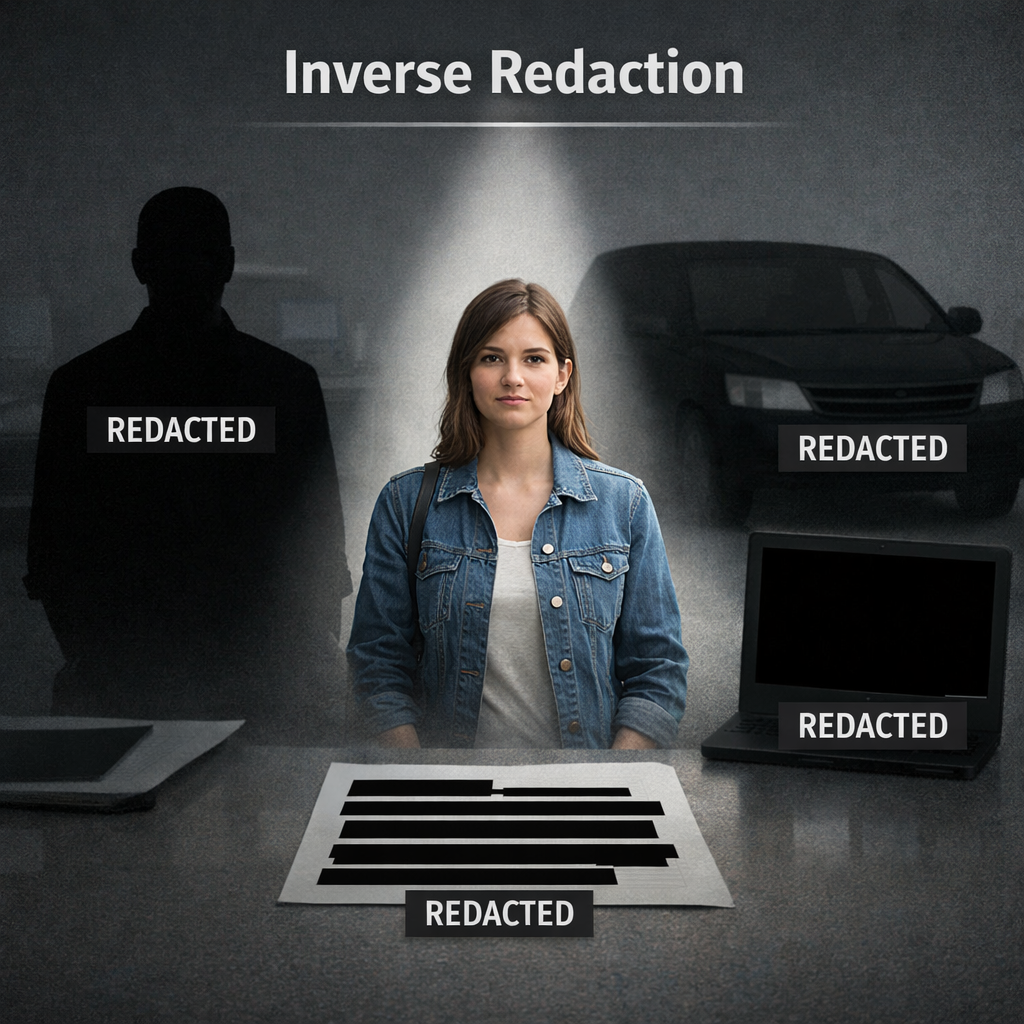
Inverse redaction is a selective redaction approach where the reviewer defines what may stay visible, then hides everything outside that selection. The method is easiest to govern when the visible boundary can be described before editing begins.
That approach differs from object-by-object redaction. In a standard workflow, the operator marks each sensitive item for removal. In an inverse workflow, the operator starts with the visible subject boundary and asks what the recipient is allowed to see.
The practical value is focus. A narrow release often needs one person, object, document area, or event path to remain understandable. Everything else may be outside the purpose of the release, even if it is not the main subject.
Key point: The reviewer should be able to explain what stays visible, why it stays visible, and what export decision follows from that release purpose.
This does not remove the need for review. It changes the review question. Instead of finding every thing to hide first, the operator defines the safe visible area and checks whether the export still communicates the needed context.
Why use inverse redaction?
Start with the release purpose. If the recipient only needs a limited visual record, inverse redaction can reduce the chance that unrelated areas remain visible. The review team can mark the subject boundary, then check whether the remaining scene still supports the reason for disclosure.
This is often easier than chasing every background detail. A reviewer might need to show a vehicle path, a handoff, or an interaction zone. If the background does not serve that purpose, it can be treated as outside the allowed view.
Records and legal teams may still need a clear audit story. A public-records release, subpoena response, discovery production, or disclosure workflow should still have a documented reason for what remains visible. Keep that release reason in the case notes so the edit can be reviewed later.
Use inverse redaction when your decision can be stated in one sentence. For example: “show only the person making the report,” or “show only the vehicle involved in the claim.” If the visible rule sounds vague, pause and narrow it before export. The Redactor documentation can sit beside your operating procedure so reviewers follow the same steps.
Key point: If the release rule takes more than one sentence to explain, pause the edit and clarify the disclosure purpose before export.
When should you use inverse redaction?
Use inverse redaction when the allowed view is smaller than the sensitive view. That condition matters because the operator can define the subject that needs to stay visible, rather than marking many unrelated items for removal. The question becomes simple: what must the viewer see for the clip to make sense?
A good candidate has a clear subject and a limited release purpose. For instance, a short clip may need to show one person’s movement, one vehicle’s position, or one document region. If the reviewer can describe the allowed subject before opening the editor, the workflow is likely ready for inverse redaction.
It also helps when review teams need consistent language. A policy note can state the permitted subject, the reason for keeping it visible, and the export setting to use. Keep that note close to your case record, not buried in personal comments. For a visual reference, the Redactor demo video can help teams discuss the review pattern before they write local instructions.
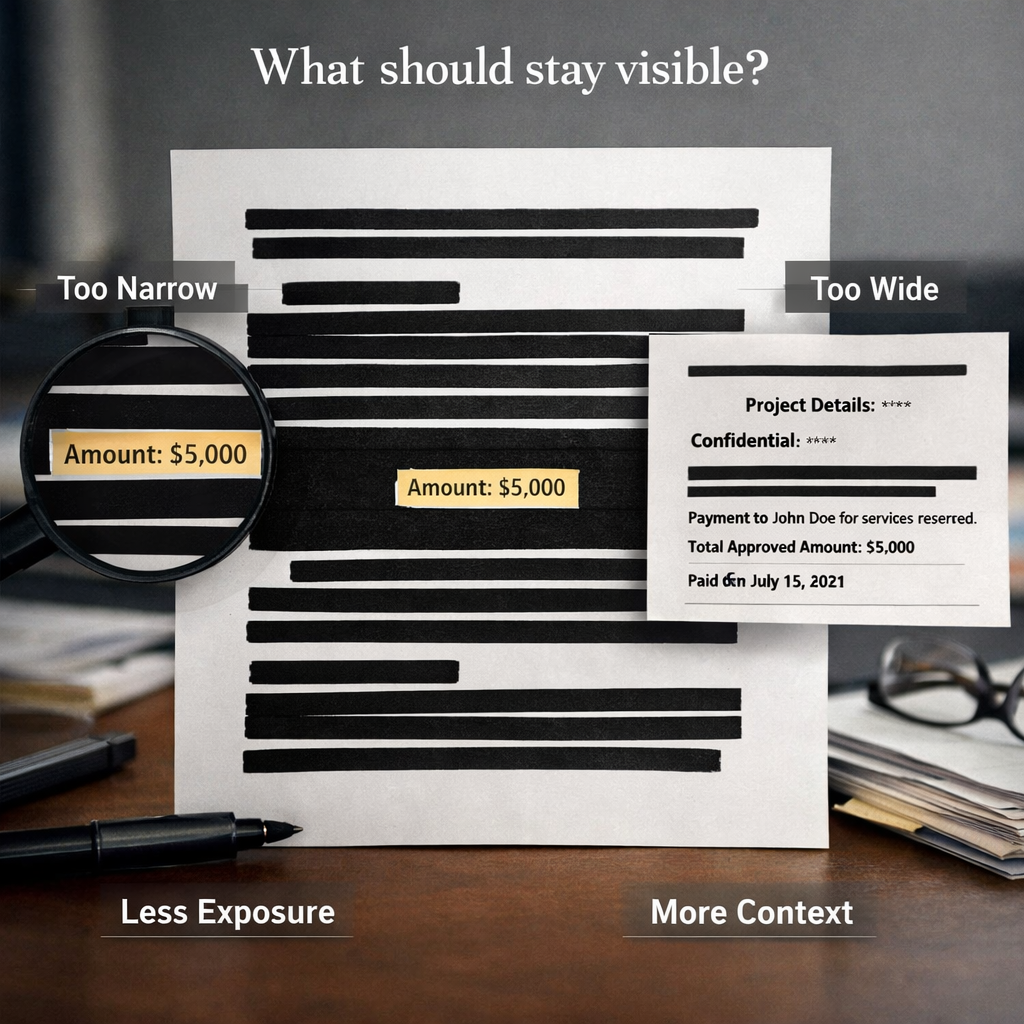
Do not treat the method as a shortcut. A final pass should still inspect the visible subject, the hidden area, and the transition between them. That boundary is where mistakes often feel most obvious to a recipient, because the viewer can compare what remains visible against the surrounding redaction.
When should you avoid inverse redaction?
Avoid inverse redaction when multiple sensitive items need different handling. Some releases still need object-by-object review because each item has its own reason, risk, or retention context. In that case, a single “show only this” rule may oversimplify the release.
Avoid it when the release rule cannot be explained. If one reviewer says the purpose is safety review and another says it is public disclosure, the visible boundary may change. Resolve that mismatch before export. A workflow decision should not be asked to settle a policy question.
Avoid it when legal or records review is incomplete. Inverse redaction can look efficient, but it still depends on a valid release decision. The United States Department of Justice publishes the Freedom of Information Act text, and teams working on disclosure should route legal questions to qualified counsel.
The method also may not fit every media type or review task. The operator still needs to decide whether the task calls for subject preservation, object removal, audio treatment, or a mixed workflow.
Key point: Compliance is the customer's responsibility, and Sighthound content is informational and not legal advice.
How Redactor helps
Sighthound Redactor is AI-powered video, image, and audio redaction software. The Redactor Smart Redaction features page describes the product area operators use when they need automated detection in a review workflow. Redactor combines Smart Redaction, which uses AI auto-detection, with Custom Redaction, which uses manual drawing tools.
Redactor Auto Detect offers seven object types in this UI order: Heads, People, License Plates, Vehicles, IDs, Screens, and Documents. In an inverse workflow, use Auto Detect where it fits the subject, review the Objects list, and then use Custom Redaction when the visible boundary needs manual adjustment. The Smart Redaction feature overview can help your team map those labels to review instructions.
Redactor supports a workflow for redacting everything except selected subjects. Use that pattern after the release purpose is clear: name what should remain visible, confirm that the surrounding scene can be hidden, then review the export before it leaves the case file.
Redactor detects heads rather than faces, and it does not identify individuals. That distinction matters when a procedure refers to identity, recognition, or confirmation. Keep those decisions outside the detection label, and use reviewer judgment for the release decision.
For export, Render & Export visual redaction types are Mosaic, Pixelate, Blur, Outline, Fill, and Smart Fill. After selecting the subject boundary, use Render & Export to choose the visual treatment that matches the release plan. Keep the Redactor documentation open when you train reviewers on Auto Detect, Submit, Objects list checks, and Render & Export.
Redactor processes hundreds or thousands of files in a single bulk workflow. Redactor runs fully offline and supports air-gapped deployment; no internet access is required for processing. Redactor runs on Windows, Linux, and Docker.
Redactor is used to prepare footage for Freedom of Information Act (FOIA) release, subpoena response, discovery, and public-records disclosure. The product can support the editing workflow, but release approval still belongs to the organization and its counsel.
Teams evaluating the workflow can use the 24-hour Redactor free trial to test inverse redaction on sample media. Redactor offers a 24-hour free trial with full feature access and no credit card required. Pair that trial with the Redactor documentation and a short internal test plan, then review the output with the people who approve release decisions.

Key Takeaways
- Inverse redaction works best when the visible subject boundary is easy to explain.
- The decision should start with release purpose, not tool settings.
- Normal review still matters, especially for legal, records, and privacy teams.
- Product-specific proof points should come after the release rule is clear, not before the reader understands the workflow.
Legal Disclaimer
Redactor is tooling; compliance is the customer's responsibility, and Sighthound content is informational and not legal advice. This article is not a substitute for legal advice from qualified counsel.
For disclosure work, align the visible boundary with the release purpose, local procedure, and the applicable review process. Counsel should interpret duties for the specific matter before the final export is released.
Sources
- Redactor Smart Redaction features
- Redactor documentation
- 24-hour Redactor free trial
- FOIA.gov
- Freedom of Information Act, 5 U.S.C. § 552
FAQ
1. Is inverse redaction the same as selective redaction?
Inverse redaction is a selective redaction pattern. The reviewer selects what should remain visible, then hides the rest. Redactor supports a workflow for redacting everything except selected subjects.
2. Does inverse redaction replace legal review?
No. It changes the editing approach, not the approval duty. Redactor is tooling; compliance is the customer's responsibility, and Sighthound content is informational and not legal advice.
3. What object types can Redactor Auto Detect find?
Redactor Auto Detect offers Heads, People, License Plates, Vehicles, IDs, Screens, and Documents in that UI order.
4. Does Redactor identify people by face?
No. Redactor detects heads, not faces, and it does not identify individuals.
5. What export treatments are available?
Render & Export visual redaction types are Mosaic, Pixelate, Blur, Outline, Fill, and Smart Fill.
Related reading
- Review product capabilities in Redactor Smart Redaction features.
- Keep workflow steps close with Redactor documentation.
- Share the Redactor demo video with reviewers before a test session.
What to do next
Test the workflow on sample media before using it for a live release: Start a 24-hour free trial.
Published on: