

By:
Haris Rana
By:
Ali AhadLast Updated:
TL;DR
- Start by defining the video set, release purpose, and whether the review covers only license plates or other sensitive objects.
- Use Auto Detect for License Plates, then review the Objects panel and timeline before export.
- Add Custom Redaction when a plate is missed, partly covered, or visible for only a short section.
- Choose one visual treatment for the release copy, then run a final playback pass on the rendered file.
- Treat Redactor as redaction tooling; compliance remains the customer's responsibility and this article is not legal advice.
Blurring license plates in video is not just a blur effect. It is a review workflow: define what needs protection, run detection, check the object list, repair misses, choose the output style, and review the exported file before release. Sighthound Redactor supports that workflow for video, image, and audio redaction.
This guide focuses on the practical steps for license plate redaction in Redactor. It also explains where legal or privacy review still belongs, because software can help you apply redactions but it should not decide what a specific release requires.
What should you decide before blurring license plates?
Before you open the editor, write down the review scope. A good scope says which files are included, whether the team is redacting every visible plate or only specific vehicles, and whether the same release also needs heads, people, vehicles, IDs, screens, documents, speech, or other audio reviewed.
That first decision prevents two common mistakes. One team member may blur license plates only while another assumes all vehicle identifiers are in scope. Or the video team may finish the visual pass while sensitive speech remains in the audio track. Redactor supports bodycam, closed-circuit television (CCTV), dashcam, mobile-phone, and screen-capture footage, so the same review pattern should work across the footage types your team handles.
Keep the Redactor documentation open while you work, especially if the reviewer is new to the editor. For GDPR context, keep the GDPR regulation text in the review packet. For California privacy planning, use the state's California privacy resource. The Department of Justice archive on video redaction best practices gives public-release context. The NIST Privacy Framework can help structure privacy-risk discussions outside the video editor.
Key point: Decide the release scope before detection so the reviewer knows whether the job is only to blur license plates in video or to review other visual and audio identifiers too.
How do you run Auto Detect for license plates?
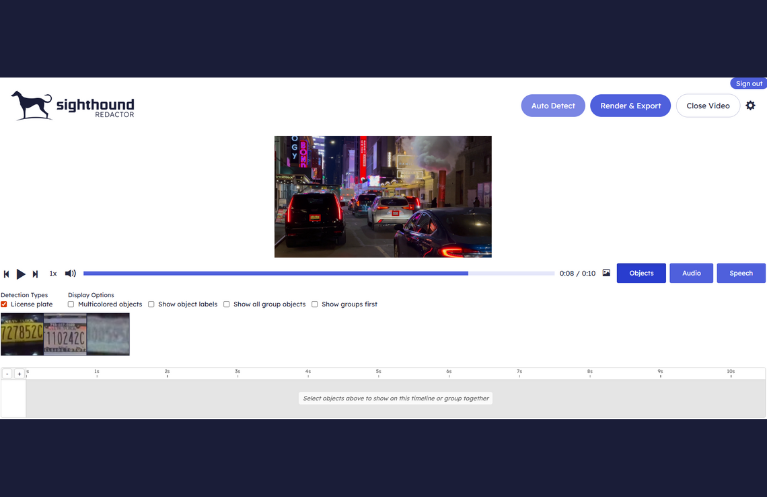
Open the video in Redactor and confirm that the right file is loaded. In the editor, the top controls include Auto Detect, Render & Export, and Close Video; the panels include Objects, Audio, and Speech.
Use this first pass to find plates:
- Open the video in the editor.
- Select Auto Detect.
- Choose License Plates as the object type.
- Submit the detection job.
- Wait for the Objects panel to populate before making edits.
Redactor Auto Detect includes seven object types in UI order: Heads, People, License Plates, Vehicles, IDs, Screens, and Documents. For a plate-redaction job, choose License Plates first. If the release scope also includes other identifiers, run the relevant passes separately and review each category on the timeline.
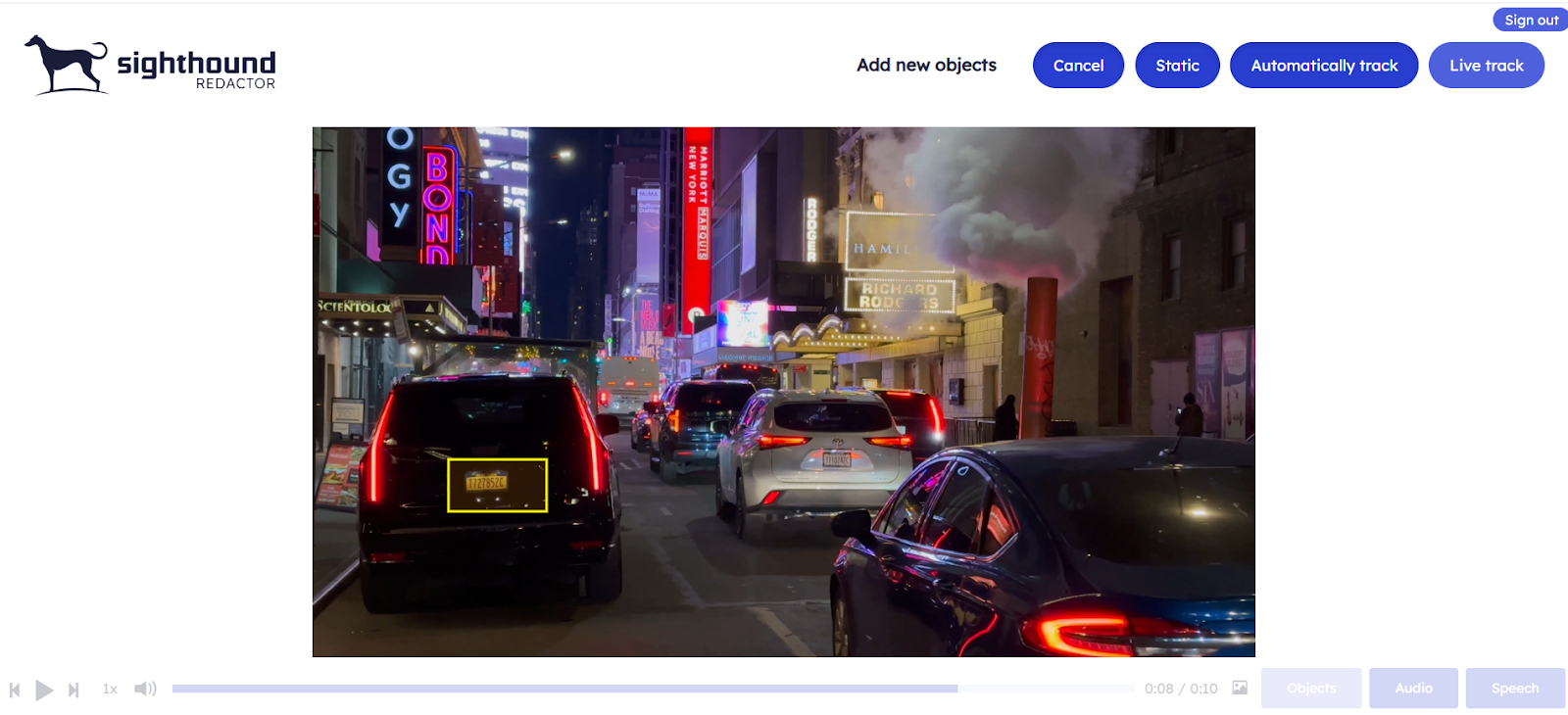
Smart Redaction is the automated detection path. Custom Redaction is the manual drawing path for exact redaction zones. In practice, use Smart Redaction to cover the obvious plates, then use Custom Redaction for missed plates, partial tracks, angled vehicles, reflections, or short appearances that need operator judgment.
If your team uses plate-system terminology in release notes, keep it consistent. Automatic license plate recognition (ALPR), automatic number plate recognition (ANPR), and license plate recognition (LPR) are separate labels. Sighthound's plate terminology guide explains the differences. For adjacent operational context, review Sighthound's notes on parking lot cameras and license plates. Sighthound's article on front license plates and ALPR visibility adds context for plate visibility in vehicle footage.
What should you check after Auto Detect runs?
Do not export from the first detection pass. Review the Objects panel, then play the timeline around every license plate that appears near a camera cut, vehicle turn, obstruction, glare, or motion blur. The goal is not to admire the detection list; the goal is to confirm that every visible plate in scope is covered in the frames that will be released.
Use this review loop:
- Open the Objects panel.
- Scan or filter for License Plates.
- Play around each detected object.
- Pause where a plate is missed, clipped, or visible outside the box.
- Add Custom Redaction or adjust the object coverage before moving on.
A license plate can be easy to miss when the vehicle is small, angled, partly blocked, overexposed, reflected in glass, or present for only a few frames. Treat those moments as review cues. They do not prove the detection failed; they tell the reviewer where to slow down.
Key point: Auto Detect is the start of the license plate redaction workflow, not the release decision.
Which redaction style should you use for license plates?
Choose the visual treatment after the object review is stable. In Redactor's Render & Export settings, visual redaction types include Mosaic, Pixelate, Blur, Outline, Fill, and Smart Fill. For most license plate redaction workflows, Blur, Pixelate, or Fill are the simplest choices because they make the protected area clear to the reviewer.
Use one style consistently unless the release instructions say otherwise. A mixed output can make quality review harder because the reviewer has to decide whether each difference is intentional. If the project has a formal release note, record the chosen style, shape, and intensity so another reviewer can reproduce the decision.

The right style depends on the release purpose. Blur can preserve scene readability while hiding the plate. Pixelate or Mosaic can make the redaction visually obvious. Fill can be useful when the reviewer wants a clean solid mask. Whatever you choose, the final check should focus on whether any plate text remains readable in the exported file.
How do you include audio and export safely?
Export only after the visual review, manual fixes, and final playback pass. In the Redactor editor, top controls include Auto Detect, Render & Export, and Close Video. Keep a working copy of the project and treat the exported file as the release candidate, not as the only record of the review.
Use this export pass:
- Play the full clip or the required release range.
- Recheck the Objects panel for plates that should be covered.
- Confirm the redaction type, shape, and intensity.
- Review audio if the release includes sound.
- Select Render & Export and submit the render.
- Watch the exported file before release.
If the footage includes speech, radio traffic, addresses, names, or other sensitive sound, include audio review in the same checklist. Redactor audio redaction modes are Mute, Beep, and Scramble, and Redactor transcription supports 8+ languages. For a broader workflow, see Redactor's guide to image and audio redaction.
For public records or legal-release planning, compare your internal process with the DOJ overview of the Freedom of Information Act. The DOJ's FOIA Exemption 6 guide explains one privacy-focused exemption. The DOJ's FOIA Exemption 7(C) guide covers personal privacy in law-enforcement records. The UK ICO's video surveillance guidance can also help teams compare privacy-review practices. Redactor is used in workflows for FOIA release, subpoena response, discovery, and public-records disclosure, but the release decision should stay inside your authorized process.
Key point: Redactor can help apply and review redactions, but your organization decides what a specific video release requires.
How Sighthound Redactor helps
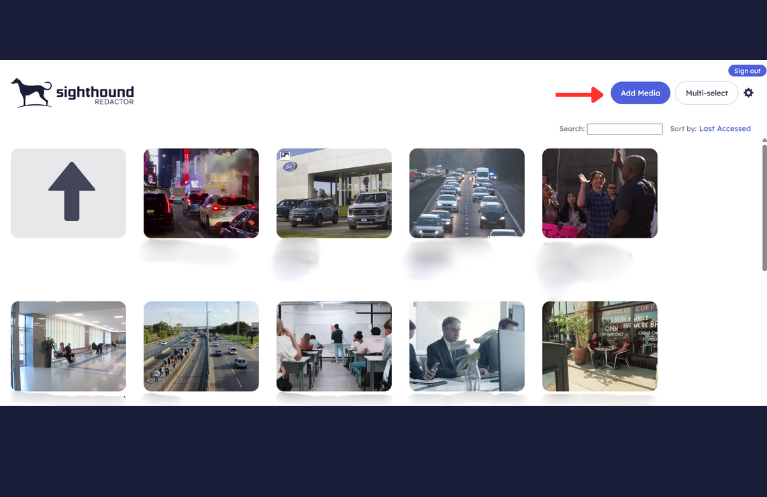
Sighthound Redactor is AI-powered video, image, and audio redaction software. It supports a practical plate-redaction path: add media, run Auto Detect, review detected objects, add manual corrections, choose a redaction treatment, and export a reviewed copy. For the product overview, review Redactor Smart Redaction features.
Redactor detects heads rather than identifying faces, and it does not identify individuals. That matters for license plate redaction because the same release may include other visible identifiers, but the tool should still be described as redaction software rather than identity-recognition software.
Deployment also matters when footage cannot leave a controlled environment. Redactor runs on Windows, Linux, and Docker. Redactor deploys as desktop, client-server, embedded UI, white-label, on-premise, offline, or air-gapped. It can run fully offline and supports air-gapped deployment with no internet access required for processing.
For recurring footage sets, Redactor can process hundreds or thousands of files in a single bulk workflow. That does not remove review responsibility, but it helps teams apply the same license plate redaction process to bodycam, dashcam, closed-circuit television, parking-lot, or mobile-phone video sets.
Practical checklist for blurring license plates in video
Use the same checklist every time a reviewer needs to blur license plates in video:
- Confirm the footage set and release range.
- Decide whether the job covers only license plates or other visual objects too.
- Run Auto Detect for License Plates.
- Review the Objects panel and timeline before manual edits.
- Add Custom Redaction for missed, partial, or short-lived plates.
- Choose one visual redaction style and record it in the release notes.
- Check audio and speech if the released file includes sound.
- Export, then review the rendered file as a viewer would see it.
For related privacy workflows, review why organizations blur license plates in public footage, how redaction supports law enforcement video review, and what changes when teams handle bodycam footage privacy. If your source video comes from vehicle footage, Redactor's dashcam footage guide can help frame the review context.
Key Takeaways
- Blurring license plates in video should follow a repeatable workflow: scope the review, detect plates, check the timeline, fix misses, export, and review the output.
- Auto Detect helps find license plates, but the Objects panel and timeline review decide whether the release candidate is ready.
- Custom Redaction is the safety net for missed plates, partial tracks, reflections, glare, and short appearances.
- The software workflow can support repeatable review, but it does not replace legal or records review.
- The final exported file should be watched before release because visible plate text can remain readable if timing, coverage, or redaction style is wrong.
FAQ
1. Can Redactor blur license plates in video?
Yes. Redactor Auto Detect includes seven object types in UI order: Heads, People, License Plates, Vehicles, IDs, Screens, and Documents. Render & Export visual redaction types include Mosaic, Pixelate, Blur, Outline, Fill, and Smart Fill. Use the exported file review to confirm the plate is not readable in the release copy.
2. Should I use Blur, Pixelate, or Fill for license plates?
Use the style your release policy expects. Blur can preserve scene context, Pixelate or Mosaic can make the redaction obvious, and Fill can create a solid mask. The important point is consistency and a final playback check.
3. What should I do if Auto Detect misses a plate?
Pause around the missed frame range and add Custom Redaction. Pay extra attention to small, angled, reflected, blocked, or short-lived plates because those are the places where a manual review pass matters most.
4. Can Redactor handle audio in the same review?
Yes. Redactor supports video, image, and audio redaction. If the release includes sound, review the Audio and Speech panels and apply Mute, Beep, or Scramble where the release instructions require audio protection.
5. Can Redactor be used offline?
Yes. Redactor can run fully offline and supports air-gapped deployment, with no internet access required for processing. That is useful when the video cannot leave a controlled review environment.
6. Does Redactor make a video legally compliant?
No. Redactor is tooling; compliance is the customer's responsibility, and Sighthound content is informational and not legal advice. Use counsel, records officers, or authorized reviewers to decide what a specific video release requires.
Legal Disclaimer
Redactor is tooling; compliance is the customer's responsibility, and Sighthound content is informational and not legal advice. Use this tutorial as operational guidance for a software workflow, not as a legal determination. Ask qualified counsel or an authorized records officer to decide what must be redacted for a specific release.
Sources
- Redactor Smart Redaction features
- Redactor documentation
- General Data Protection Regulation text
- California privacy resource
- Department of Justice video redaction best practices
What to do next
Published on: